

The Aobio label printer prints exactly what you see by print preview on the screen, if your printed label looks sideways or has a lot of white space on the label, the most likely reason would be that the label is not properly formatted for 4x6 inches before printing out. You may need to adjust the settings before printing.
1. Self-check 1: Check if the 4x6 Sample Label can be printed properly
If the sample label prints out fine, meaning your printer, computer, driver and labels are working fine, and settings are fine, then you may jump to Self-check 2.
- Sample Label for Testing.pdf (Download the Sample Label for printing if you don't have one. It's a normal 4x6 sample Label in pdf file format.)
If your label file is 4 x 6 format (just the same as the Sample) but still comes out sideways or too small, like the following example, you may need learn to select a right label size, and set up orientation amount Auto, Portrait and Landscape before printing. Just try to click from different option until you figure out how to print a Sample Label with your software.

Self-check 2: Your orgianal file is not 4x6 inches
Most likely, you've got an pdf file from other shipment platform in A4 format, which can not be suit the label printer with simple settings. You original file may looks like these.
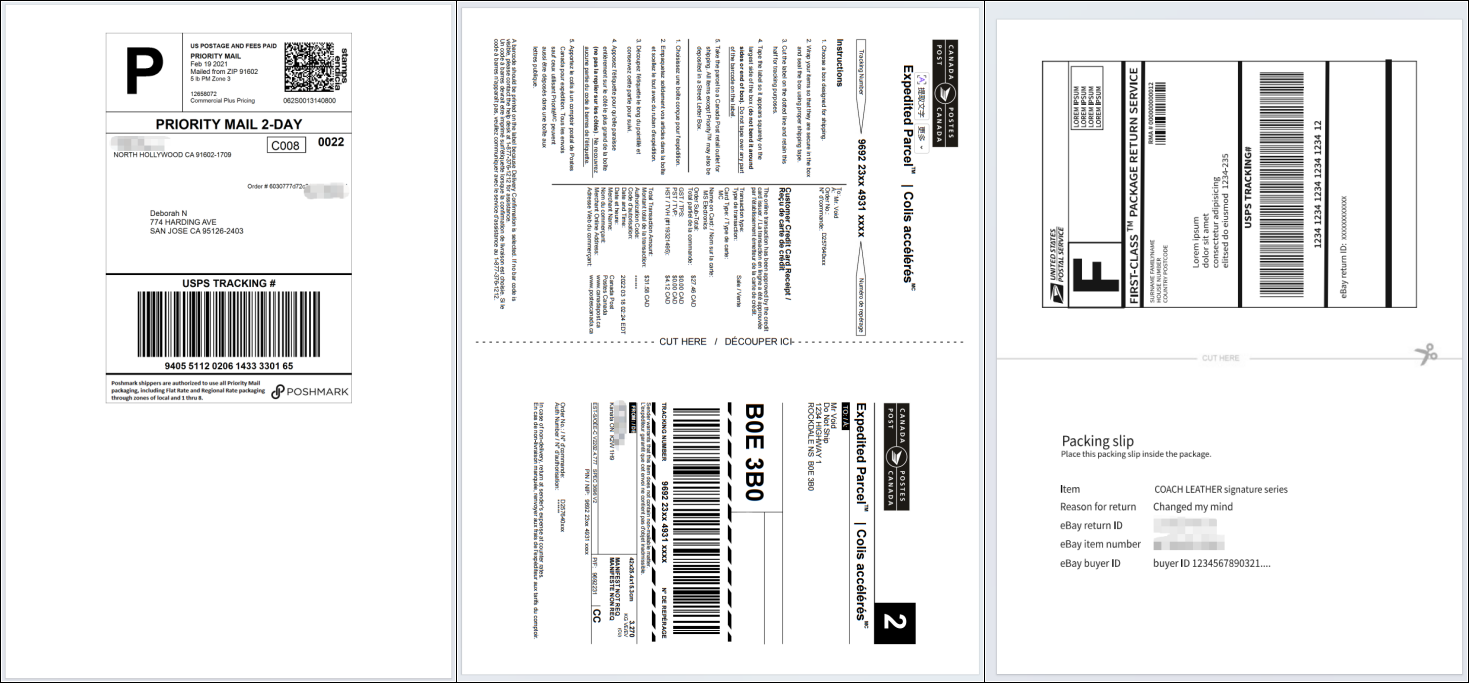

- If you still want to print from this 8.5 x 11 size or A4 format file. See this link to crop your label. How to crop a full size 8.5" x 11" page to a 4" x 6" label? The first time to figure it out for a beginner may take few while, but it will be rather simple once you sucess once.
- Or you can check if your shipping platform can provide 4x6 inches in the correct orientation. Most platforms can offter pdf label file in both A4 or 4x6 format. If you can't figure out how to get the 4x6 inches from the platform, please check our How-Tos for the most popular platforms on this link.